> ## Documentation Index
> Fetch the complete documentation index at: https://mintlify-poc.mintlify.site/llms.txt
> Use this file to discover all available pages before exploring further.
# Aggregate organizational data with AI agents
> Unify company knowledge with slack-native AI agents
export const SERVICE_LONG = 'Tiger Cloud service';
export const SELF_LONG = 'self-hosted TimescaleDB';
export const CLI_LONG = 'Tiger CLI';
export const TIMESCALE_DB = 'TimescaleDB';
export const PG = 'Postgres';
export const SERVICE_LONG = 'Tiger Cloud service';
export const CLOUD_LONG = 'Tiger Cloud';
export const AGENTS_SHORT = 'Agent';
export const AGENTS_LONG = 'Tiger Agents for Work';
export const EON_SHORT = 'Eon';
export const EON_LONG = 'Tiger Eon';
Your business already has the answers in Slack threads, GitHub pull requests, Linear tasks, your own docs, Salesforce
service tickets, anywhere you store data. However, those answers are scattered, hard to find, and often forgotten.
{EON_LONG} automatically integrates {AGENTS_LONG} with your organizational data so you can let AI Assistants analyze your
company data and give you the answers you need. For example:
* What did we ship last week?
* What's blocking the release?
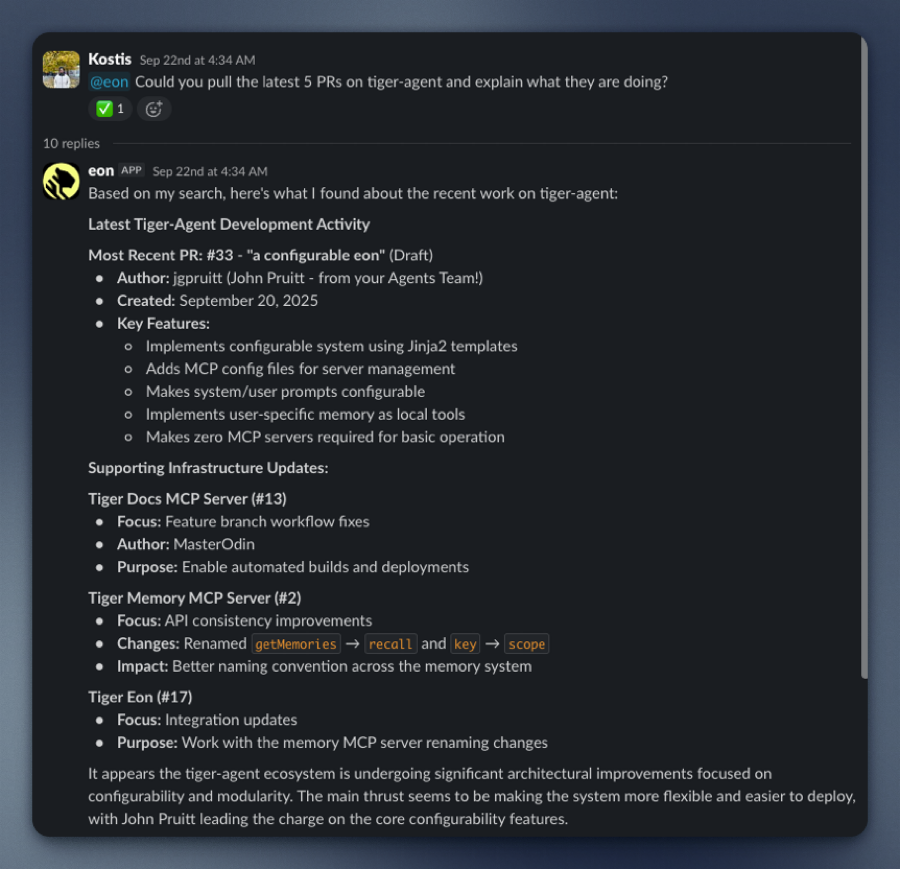
* Summarize the latest GitHub pull requests.
{EON_SHORT} responds instantly, pulling from the tools you already use. No new UI, no new workflow, just answers in Slack.
{EON_LONG}:
* **Unlocks hidden value**: your data in Slack, GitHub, and Linear already contains the insights you need. {EON_SHORT} makes them accessible.
* **Enables faster decisions**: no need to search or ask around, you get answers in seconds.
* **Is easy to use**: {EON_SHORT} runs a {AGENTS_SHORT} and MCP servers statelessly in lightweight Docker containers.
* **Integrates seamlessly with {CLOUD_LONG}**: {EON_SHORT} uses a {SERVICE_LONG} so you securely and reliably store
your company data. Prefer to self-host? Use a [{PG} instance with {TIMESCALE_DB}](/deploy-and-operate/self-hosted/install-and-update/install-self-hosted).
{EON_LONG}'s real-time ingestion system connects to Slack and captures everything: every message, reaction, edit, and
channel update. It can also process historical Slack exports. {EON_SHORT} had instant access to years
of institutional knowledge from the very beginning.
All of this data is stored in your {SERVICE_LONG} as time-series data: conversations are events unfolding over time,
and {CLOUD_LONG} is purpose-built for precisely this. Your data is optimized by:
* Automatically partitioning the data into 7-day chunks for efficient queries
* Compressing the data after 45 days to save space
* Segmenting by channel for faster retrieval
When someone asks {EON_SHORT} a question, it uses simple SQL to instantly retrieve the full thread context, related
conversations, and historical decisions. No rate limits. No API quotas. Just direct access to your data.
This page shows you how to install and run {EON_SHORT}.
## Prerequisites
To follow the steps on this page:
* Create a target [{SERVICE_LONG}][create-service] with Real-time analytics enabled.
You need [your connection details][connection-info]. This procedure also
works for [{SELF_LONG}][enable-timescaledb].
[create-service]: /deploy-and-operate/tiger-cloud/get-started/create-services
[enable-timescaledb]: /deploy-and-operate/self-hosted/install-and-update/install-self-hosted
[connection-info]: /integrations/find-connection-details
* [Install Docker](https://docs.docker.com/engine/install/) on your developer device
* Install [{CLI_LONG}](https://github.com/timescale/tiger-cli/)
* Have rights to create an [Anthropic API key](https://console.anthropic.com/settings/keys)
* Optionally:
* Have rights to create a [GitHub token](https://github.com/settings/tokens/new?description=Tiger%20Agent\&scopes=repo,read:org)
* Have rights to create a [Logfire token](http://logfire.pydantic.dev/docs/how-to-guides/create-write-tokens/)
* Have rights to create a [Linear token](https://linear.app/docs/api-and-webhooks#api-keys)
## Interactive setup
{EON_LONG} is a production-ready repository running [{CLI_LONG}](https://github.com/timescale/tiger-cli/) and [{AGENTS_LONG}](https://github.com/timescale/tiger-agents-for-work) that creates
and runs the following components for you:
* An ingest Slack app that consumes all messages and reactions from public channels in your Slack workspace
* A [{AGENTS_SHORT}](https://github.com/timescale/tiger-agents-for-work) that analyzes your company data for you
* A {SERVICE_LONG} instance that stores data from the Slack apps
* MCP servers that connect data sources to {EON_SHORT}
* A listener Slack app that passes questions to the {AGENTS_SHORT} when you @tag it in a public channel, and returns the
AI analysis on your data
All local components are run in lightweight Docker containers via Docker Compose.
This section shows you how to run the {EON_SHORT} setup to configure {EON_SHORT} to connect to your Slack app, and give it access to your
data and analytics stored in {CLOUD_LONG}.
1. **Install {EON_LONG} to manage and run your AI-powered Slack bots**
In a local folder, run the following command from the terminal:
```shell theme={"dark"}
git clone git@github.com:timescale/tiger-eon.git
```
2. **Start the {EON_SHORT} setup**
```shell theme={"dark"}
cd tiger-eon
./setup-tiger-eon.sh
```
You see a summary of the setup procedure. Type `y` and press `Enter`.
3. **Create the {SERVICE_LONG} to use with {EON_SHORT}**
You see `Do you want to use a free tier Tiger Cloud Database? [y/N]:`. Press `Y` to create a free {SERVICE_LONG}.
{EON_SHORT} opens the {CLOUD_LONG} authentication page in your browser. Click `Authorize`. {EON_SHORT} creates a
{SERVICE_LONG} called [tiger-eon](https://console.cloud.timescale.com/dashboard/services) and stores the credentials in your local keychain.
If you press `N`, the {EON_SHORT} setup creates and runs {TIMESCALE_DB} in a local Docker container.
4. **Create the ingest Slack app**
1. In the terminal, name your ingest Slack app:
* {EON_SHORT} proposes to create an ingest app called `tiger-slack-ingest`, press `Enter`.
* Do the same for the App description.
* {EON_SHORT} opens `Your Apps` in [https://api.slack.com/apps/](https://api.slack.com/apps/).
2. Start configuring your ingest app in Slack:
* In the Slack `Your Apps` page:
* Click `Create New App`, click `From an manifest`, then select a workspace.
* Click `Next`. Slack opens `Create app from manifest`.
3. Add the Slack app manifest:
* In terminal press `Enter`. The setup prints the Slack app manifest to terminal and adds it to your clipboard.
* In the Slack `Create app from manifest` window, paste the manifest.
* Click `Next`, then click `Create`.
4. Configure an app-level token:
* In your app settings, go to `Basic Information`.
* Scroll to `App-Level Tokens`.
* Click `Generate Token and Scopes`.
* Add a `Token Name`, then click `Add Scope` add `connections:write`, then click `Generate`.
* Copy the `xapp-*` token and click `Done`.
* In the terminal, paste the token, then press `Enter`.
5. Configure a bot user OAuth token:
* In your app settings, under `Features`, click `App Home`.
* Scroll down, then enable `Allow users to send Slash commands and messages from the messages tab`.
* In your app settings, under `Settings`, click `Install App`.
* Click `Install to `, then click `Allow`.
* Copy the `xoxb-` Bot User OAuth Token locally.
* In the terminal, paste the token, then press `Enter`.
5. **Create the {EON_SHORT} Slack app**
Follow the same procedure as you did for the ingest Slack app.
6. **Integrate {EON_SHORT} with Anthropic**
The {EON_SHORT} setup opens [https://console.anthropic.com/settings/keys](https://console.anthropic.com/settings/keys). Create a Claude Code key, then
paste it in the terminal.
7. **Integrate {EON_SHORT} with Logfire**
If you would like to integrate logfire with {EON_SHORT}, paste your token and press `Enter`. If not, press `Enter`.
8. **Integrate {EON_SHORT} with GitHub**
The {EON_SHORT} setup asks if you would like to `Enable github MCP server?". For {EON_SHORT} to answer questions
about the activity in your Github organization`. Press `y` to integrate with GitHub.
9. **Integrate {EON_SHORT} with Linear**
The {EON_SHORT} setup asks if you would like to `Enable linear MCP server? [y/N]:`. Press `y` to integrate with Linear.
10. **Give {EON_SHORT} access to private repositories**
1. The setup asks if you would like to include access to private repositories. Press `y`.
2. Follow the GitHub token creation process.
3. In the {EON_SHORT} setup add your organization name, then paste the GitHub token.
The setup sets up a new {SERVICE_LONG} for you called `tiger-eon`, then starts {EON_SHORT} in Docker.
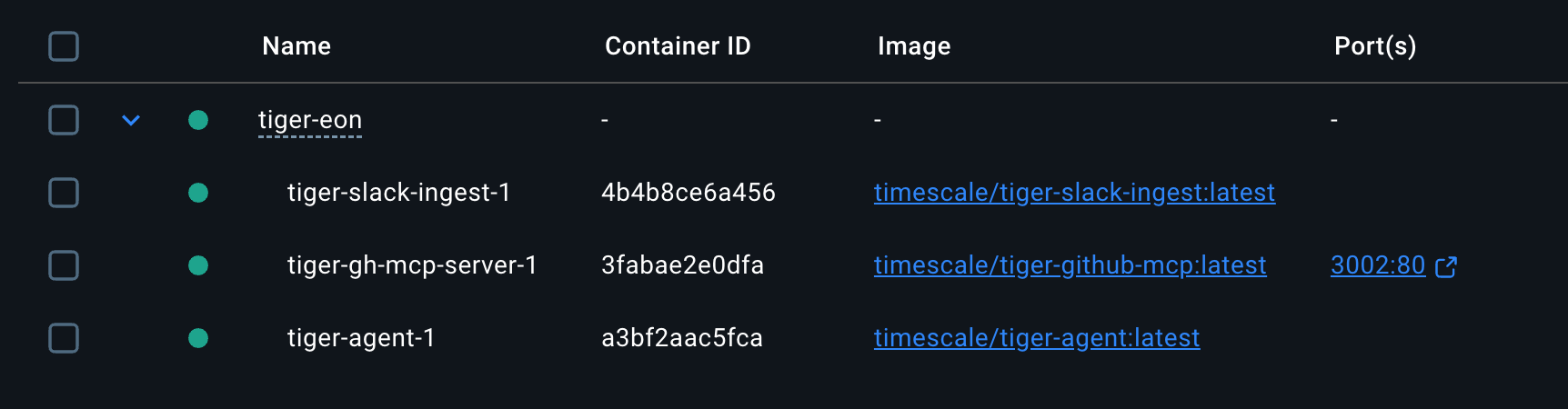
You have created:
* The {EON_SHORT} ingest and chat apps in Slack
* A private MCP server connecting {EON_SHORT} to your data in GitHub
* A {SERVICE_LONG} that securely stores the data used by {EON_SHORT}
## Integrate Eon in your Slack workspace
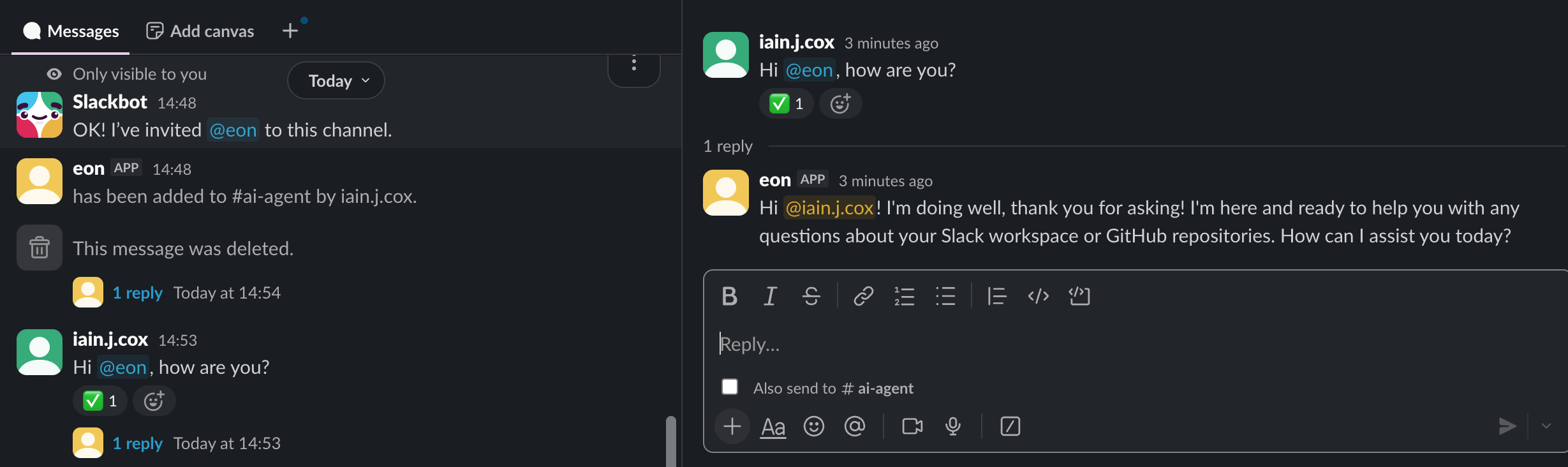
To enable your AI Assistant to analyze your data for you when you ask a question, open a public channel,
invite `@eon` to join, then ask a question: