

Prerequisites
To follow the steps on this page:- Create a target with Real-time analytics enabled. You need your connection details.
- Sign up for Amazon CloudWatch.
This feature is currently not supported for on Microsoft Azure.
Create a data exporter
A data exporter sends telemetry data from a to a third-party monitoring tool. You create an exporter on the level, in the same AWS region as your :- In , open Exporters
-
Click
New exporter -
Select the data type and specify
AWS CloudWatchfor provider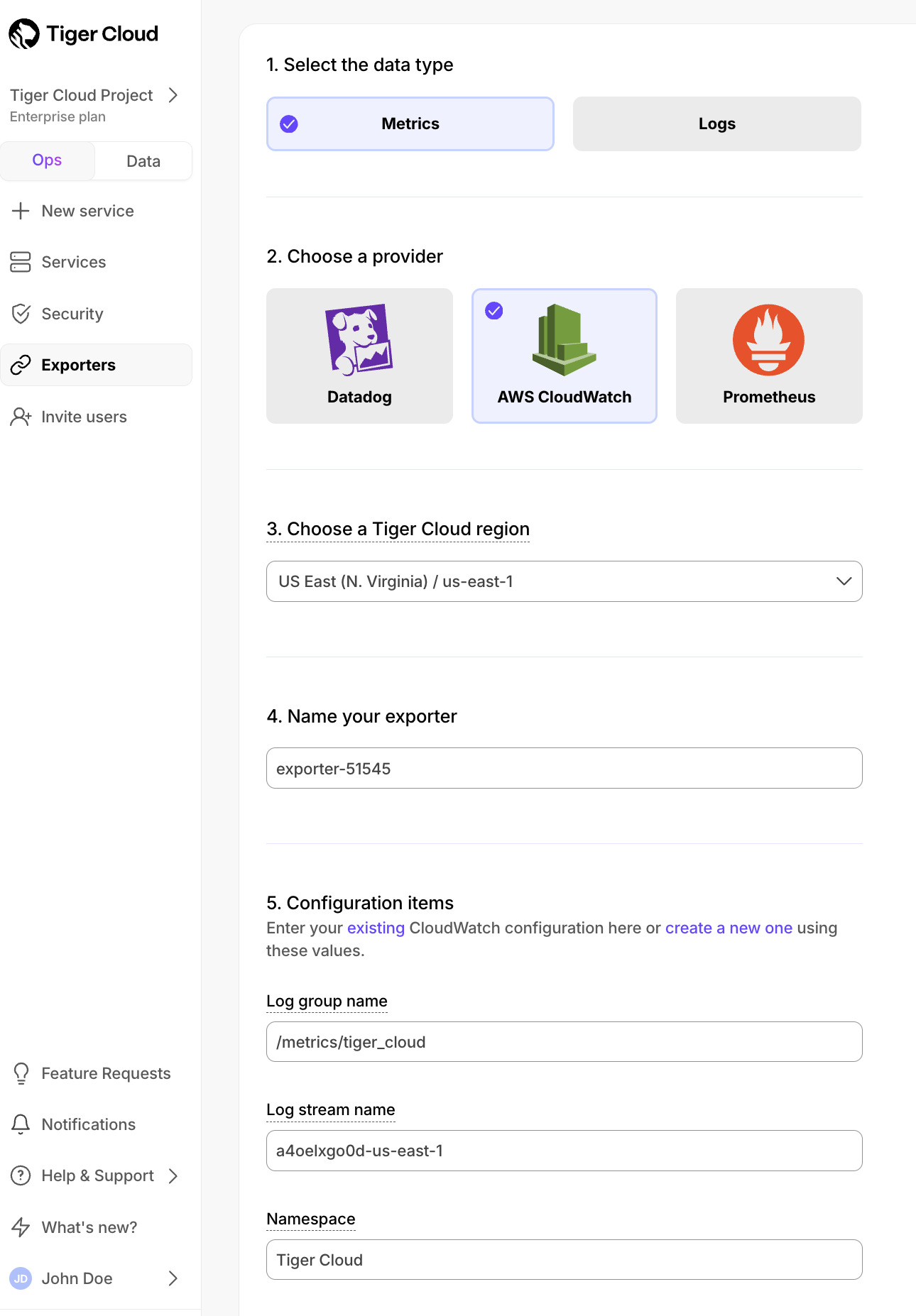
-
Provide your AWS CloudWatch configuration
- The AWS region must be the same for your exporter and AWS CloudWatch Log group.
- The exporter name appears in , best practice is to make this name easily understandable.
- For CloudWatch credentials, either use an existing CloudWatch Log group or create a new one. If you’re uncertain, use the default values. For more information, see Working with log groups and log streams.
-
Choose the authentication method to use for the exporter
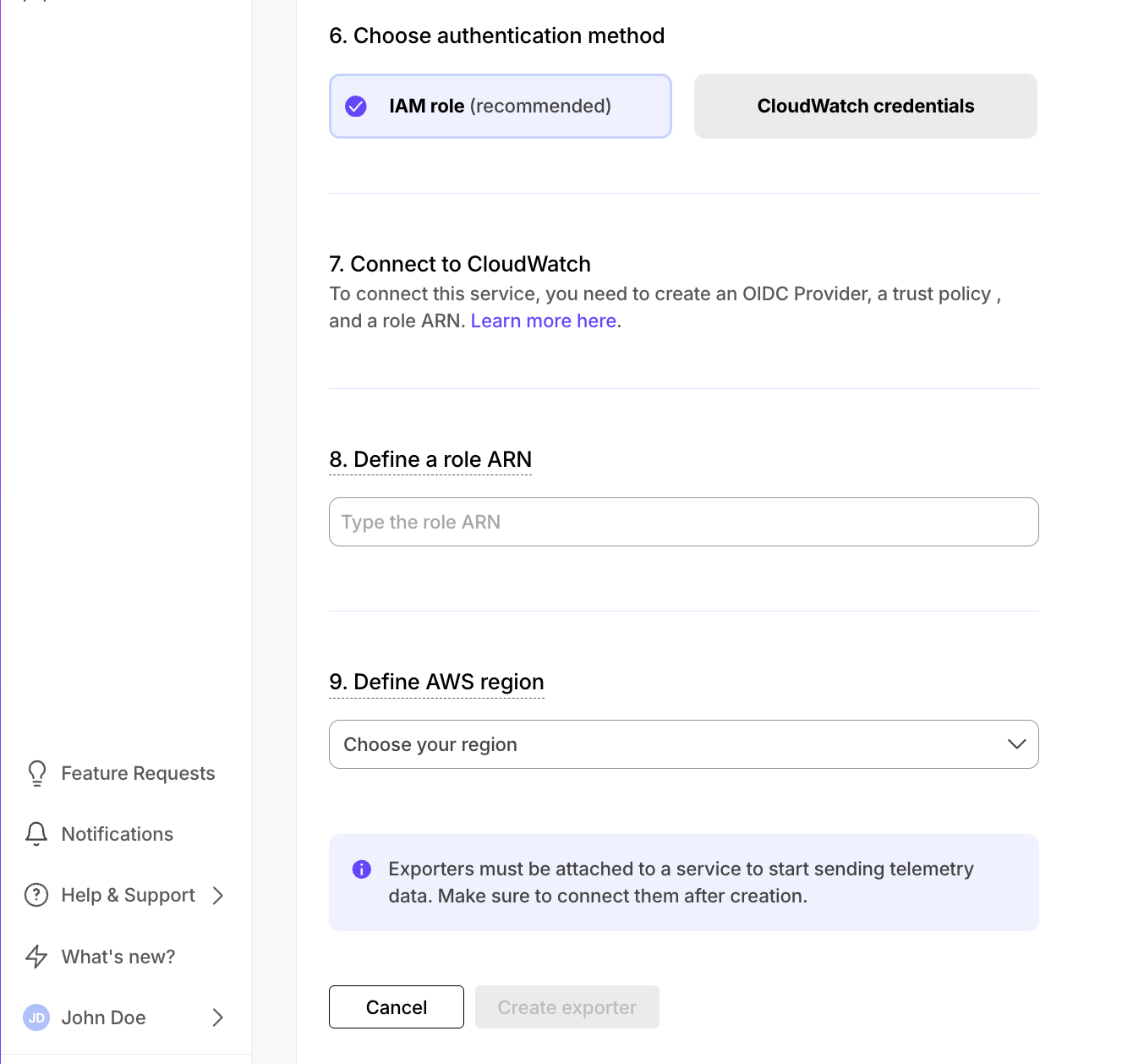
- IAM role
- CloudWatch credentials
-
In AWS, navigate to IAM > Identity providers, then click
Add provider. -
Update the new identity provider with your details:
Set
Provider URLto the region where you are creating your exporter.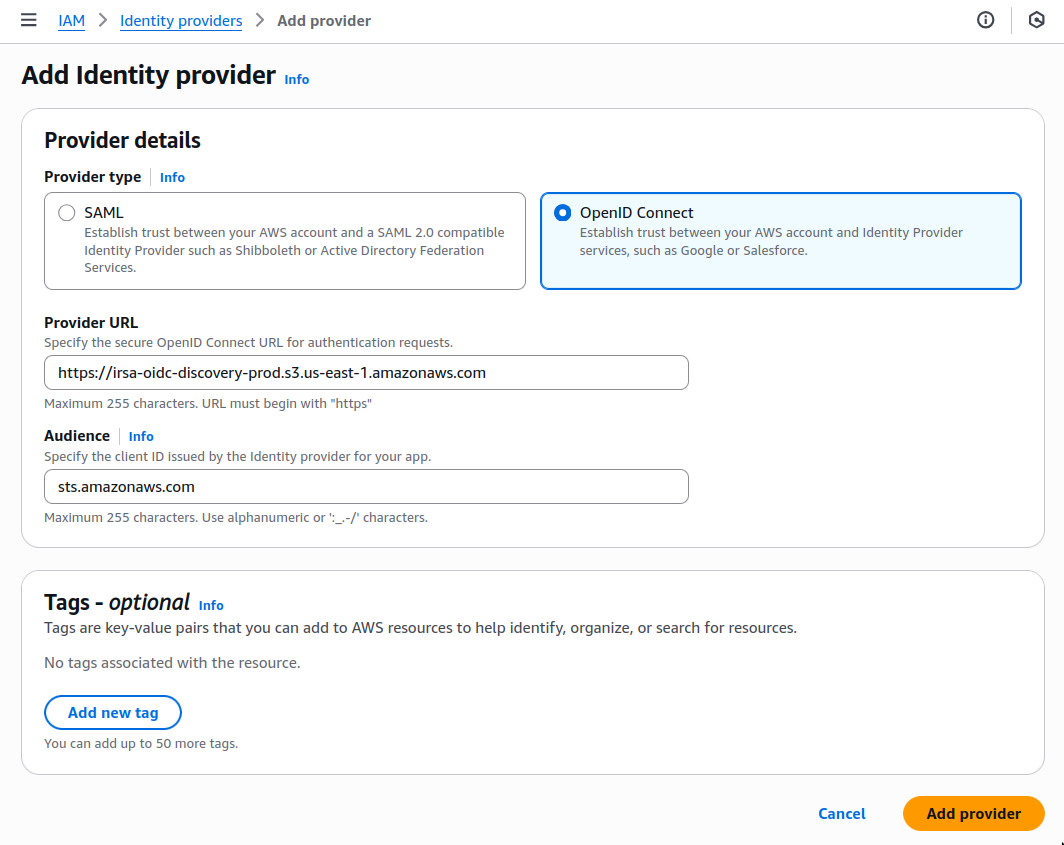
-
Click
Add provider. -
In AWS, navigate to IAM > Roles, then click
Create role. -
Add your identity provider as a Web identity role and click
Next.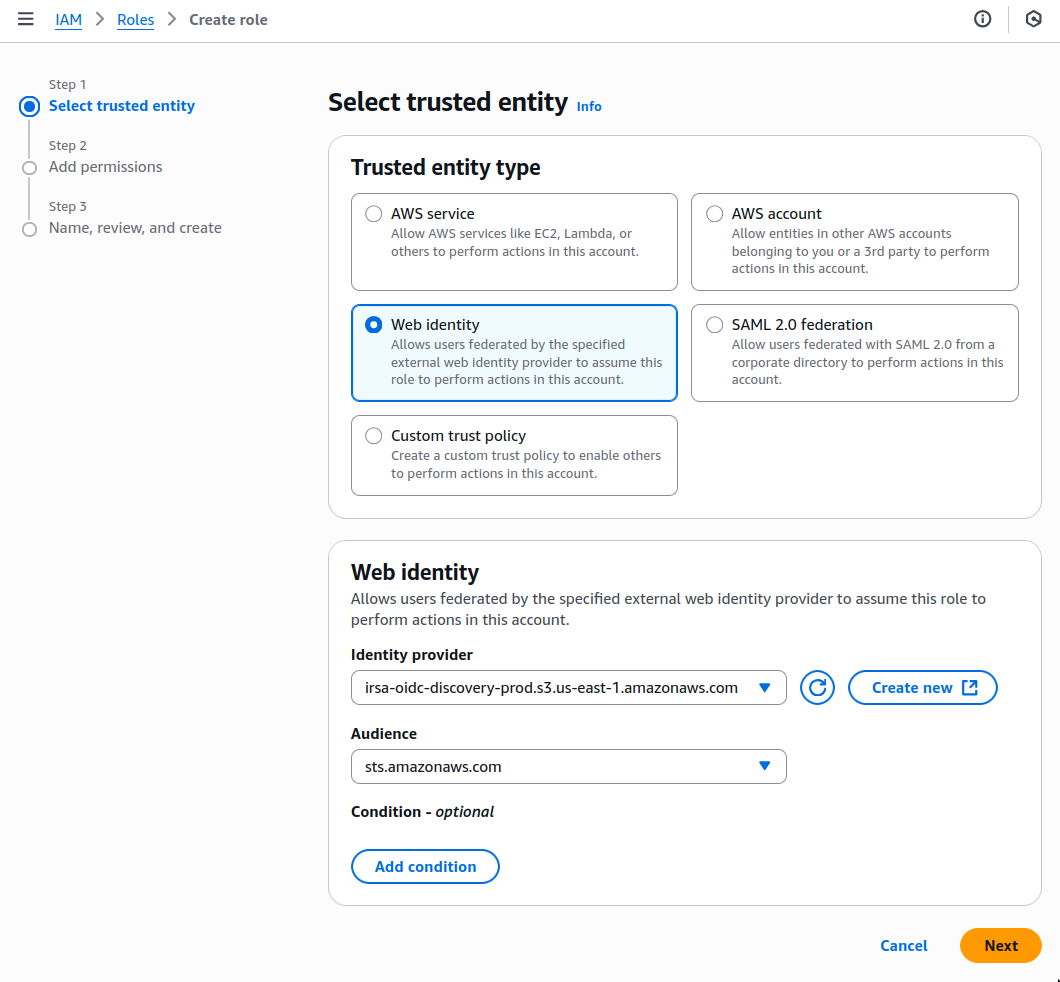
-
Set the following permission and trust policies:
-
Permission policy:
-
Role with a Trust Policy:
-
Permission policy:
-
Click
Add role.
-
Select the AWS Region your CloudWatch services run in, then click
Create exporter.
Attach a data exporter to a Tiger Cloud service
To send telemetry data to an external monitoring tool, you attach a data exporter to your . You can attach only one exporter to a . To attach an exporter:- In , choose the
- Click
Operations>Exporters - Select the exporter, then click
Attach exporter - If you are attaching a first
Logsdata type exporter, restart the
Monitor Tiger Cloud service metrics
You can now monitor your metrics. Use the following metrics to check the service is running correctly:timescale.cloud.system.cpu.usage.millicorestimescale.cloud.system.cpu.total.millicorestimescale.cloud.system.memory.usage.bytestimescale.cloud.system.memory.total.bytestimescale.cloud.system.disk.usage.bytestimescale.cloud.system.disk.total.bytes
Edit a data exporter
To update a data exporter:- In , open Exporters
- Next to the exporter you want to edit, click the menu >
Edit - Edit the exporter fields and save your changes
Delete a data exporter
To remove a data exporter that you no longer need:-
Disconnect the data exporter from your s
- In , choose the .
- Click
Operations>Exporters. - Click the trash can icon.
- Repeat for every attached to the exporter you want to remove.
-
Delete the exporter on the project level
- In , open Exporters
- Next to the exporter you want to edit, click menu >
Delete - Confirm that you want to delete the data exporter.