

- Monitor metrics with Datadog This integration is available for and s.
- Configure Datadog Agent to collect metrics for your This integration is available for all s.
Prerequisites
To follow the steps on this page:- Create a target with Real-time analytics enabled. You need your connection details.
- Sign up for Datadog. You need your Datadog API key to follow this procedure.
- Install Datadog Agent.
This feature is currently not supported for on Microsoft Azure.
Monitor metrics with Datadog
Export telemetry data from your s with the time-series and analytics capability enabled to Datadog using a data exporter. The available metrics include CPU usage, RAM usage, and storage.Create a data exporter
A data exporter sends telemetry data from a to a third-party monitoring tool. You create an exporter on the level, in the same AWS region as your :- In , open Exporters
-
Click
New exporter -
Select
MetricsforData typeandDatadogfor provider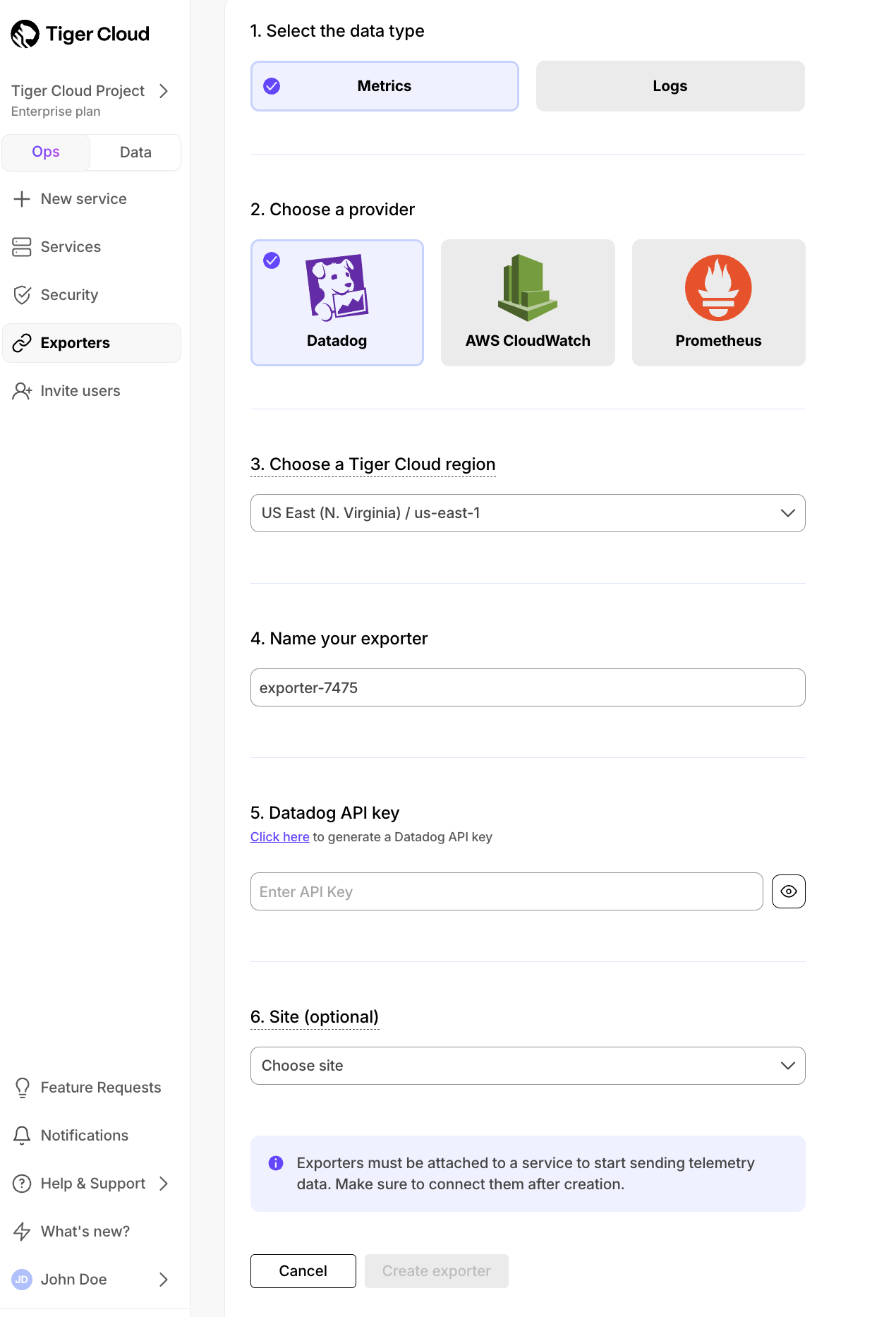
- Choose your AWS region and provide the API key The AWS region must be the same for your exporter and the Datadog provider.
-
Set
Siteto your Datadog region, then clickCreate exporter
Attach a data exporter to a Tiger Cloud service
To send telemetry data to an external monitoring tool, you attach a data exporter to your . You can attach only one exporter to a . To attach an exporter:- In , choose the
- Click
Operations>Exporters - Select the exporter, then click
Attach exporter - If you are attaching a first
Logsdata type exporter, restart the
Monitor Tiger Cloud service metrics
You can now monitor your metrics. Use the following metrics to check the service is running correctly:timescale.cloud.system.cpu.usage.millicorestimescale.cloud.system.cpu.total.millicorestimescale.cloud.system.memory.usage.bytestimescale.cloud.system.memory.total.bytestimescale.cloud.system.disk.usage.bytestimescale.cloud.system.disk.total.bytes
Edit a data exporter
To update a data exporter:- In , open Exporters
- Next to the exporter you want to edit, click the menu >
Edit - Edit the exporter fields and save your changes
Delete a data exporter
To remove a data exporter that you no longer need:-
Disconnect the data exporter from your s
- In , choose the .
- Click
Operations>Exporters. - Click the trash can icon.
- Repeat for every attached to the exporter you want to remove.
-
Delete the exporter on the project level
- In , open Exporters
- Next to the exporter you want to edit, click menu >
Delete - Confirm that you want to delete the data exporter.
Reference
When you create the IAM OIDC provider, the URL must match the region you create the exporter in. It must be one of the following:Configure Datadog Agent to collect metrics for your services
Datadog Agent includes a integration that you use to collect detailed database metrics about your s.-
Connect to your
For , open an SQL editor in . For , use
psql. -
Add the
datadoguser to your -
Test the connection and rights for the datadog user
Update the following command with your connection details, then run it from the command line:
You see the output from the
pg_stat_databasetable, which means you have given the correct rights todatadog. -
Connect Datadog to your
-
Configure the Datadog Agent configuration file; it is usually located on the Datadog Agent host at:
- Linux:
/etc/datadog-agent/conf.d/postgres.d/conf.yaml - MacOS:
/opt/datadog-agent/etc/conf.d/postgres.d/conf.yaml - Windows:
C:\ProgramData\Datadog\conf.d\postgres.d\conf.yaml
- Linux:
-
Integrate Datadog Agent with your :
Use your connection details to update the following and add it to the Datadog Agent
configuration file:
-
Configure the Datadog Agent configuration file; it is usually located on the Datadog Agent host at:
-
Add metrics
Tags to make it easier for build Datadog dashboards that combine metrics from the data exporter and
Datadog Agent. Use your connection details to update the following and add it to
<datadog_home>/datadog.yaml: - Restart Datadog Agent See how to Start, stop, and restart Datadog Agent.